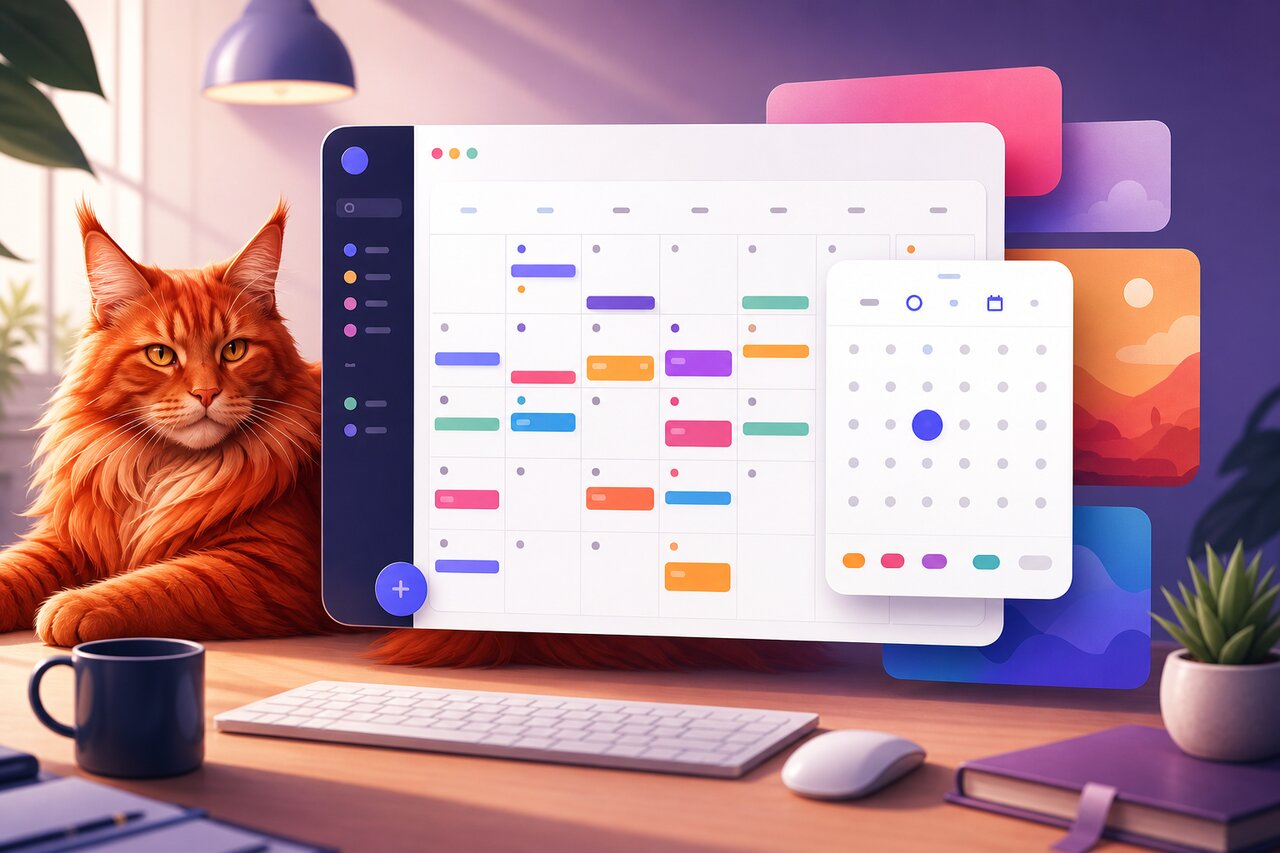

Every app eventually needs a calendar, and every developer who has tried to build one from scratch knows the pain that follows. Month grids, week and day time-grids, overlapping event placement, all-day versus timed events, drag-to-move interactions, recurrence rules, timezones, internationalization, accessibility — it is a deceptively deep well. For years the answer was to reach for FullCalendar or react-big-calendar, both capable but both showing their age in either styling or developer experience.
Schedule-X is a fresher take. It is a framework-agnostic event calendar and date picker built in vanilla TypeScript, with official thin wrappers for React, Vue, Svelte, Angular, and Preact. The core ships as @schedule-x/calendar, and the whole thing is designed around two ideas: it should look great with zero styling effort, and it should be extended through small opt-in plugins rather than one giant config object. It bills itself plainly as a modern alternative to FullCalendar and react-big-calendar, and the material-design default theme makes that claim feel earned the moment you render it.
Why It Stands Out
A few things separate Schedule-X from the incumbents:
- It looks finished by default. The
@schedule-x/theme-defaultmaterial design theme means you get a clean, professional calendar without writing a line of CSS. There is also an official@schedule-x/theme-shadcntheme for projects already living in that ecosystem. - It is genuinely framework-agnostic. The calendar engine is vanilla TypeScript, and the React, Vue, Svelte, Angular, and Preact wrappers are thin. If your stack spans frameworks, you get one consistent calendar everywhere.
- It is plugin-based. The base bundle stays lean. Recurrence, programmatic event services, drag-and-drop, modals, iCal import/export — each is a separate package you add only when you need it.
- It is fully typed. First-class TypeScript types make the declarative config pleasant to work with and hard to misuse.
- i18n and timezones are first-class. Localization and timezone handling are built in rather than bolted on.
One honest caveat worth knowing up front: the headline interactions many people assume are core — drag-and-drop and resize — are commercially licensed premium plugins. The free tier is generous (views, event modal, recurrence, programmatic event control, iCal, controls), but if dragging events around must be free, factor that into your decision.
Getting It Installed
For a React project, grab the core, the React wrapper, a theme, and whichever free plugins you want:
npm install @schedule-x/react @schedule-x/calendar @schedule-x/theme-default @schedule-x/events-service
Or with yarn:
yarn add @schedule-x/react @schedule-x/calendar @schedule-x/theme-default @schedule-x/events-service
That is the entire free stack for a working, good-looking calendar. Optional free plugins like @schedule-x/event-recurrence, @schedule-x/event-modal, and @schedule-x/calendar-controls install the same way when you need them.
Rendering Your First Calendar
The React integration centers on two pieces: the useCalendarApp hook that instantiates the calendar, and the <ScheduleXCalendar /> component that renders it. Views are created by factory functions you pass into the views array, and events are plain objects.
import { useState } from 'react'
import { useCalendarApp, ScheduleXCalendar } from '@schedule-x/react'
import {
  createViewDay,
  createViewWeek,
  createViewMonthGrid,
  createViewMonthAgenda,
} from '@schedule-x/calendar'
import { createEventsServicePlugin } from '@schedule-x/events-service'
import '@schedule-x/theme-default/dist/index.css'

function CalendarApp() {
  const eventsService = useState(() => createEventsServicePlugin())[0]

  const calendar = useCalendarApp({
    views: [
      createViewDay(),
      createViewWeek(),
      createViewMonthGrid(),
      createViewMonthAgenda(),
    ],
    events: [
      {
        id: 1,
        title: 'Coffee with John',
        start: '2026-06-01 10:00',
        end: '2026-06-01 11:00',
      },
    ],
    selectedDate: '2026-06-01',
    plugins: [eventsService],
  })

  return <ScheduleXCalendar calendarApp={calendar} />
}
A few things are doing quiet work here. The views array decides which view buttons appear and how the calendar responds across breakpoints — drop in only the views you want. The events array seeds the calendar with data. And notice the plugin is created with useState(() => createEventsServicePlugin()) rather than inline: Schedule-X plugins must be instantiated exactly once and kept stable across renders, or you will hit re-instantiation bugs. Memoizing them is the standard pattern.
One easy thing to trip on: timed events use a space-separated 'YYYY-MM-DD HH:mm' format, not the ISO T separator. If you pass a date-only string instead, like '2026-06-01', the event becomes an all-day event automatically.
Shaping Your Events
Events are just objects, and the only truly required fields are a unique id and a title, plus start and end. From there you can layer on description, location, people, and a calendarId that ties the event to a named color category.
const calendars = {
  work: {
    colorName: 'work',
    lightColors: { main: '#1c7df9', container: '#d2e7ff', onContainer: '#002859' },
    darkColors: { main: '#c0dfff', container: '#426aa2', onContainer: '#dee6ff' },
  },
  personal: {
    colorName: 'personal',
    lightColors: { main: '#f91c45', container: '#ffd2dc', onContainer: '#59000d' },
    darkColors: { main: '#ffc0cc', container: '#a24258', onContainer: '#ffdee6' },
  },
}

const events = [
  {
    id: 'standup',
    title: 'Team standup',
    start: '2026-06-02 09:30',
    end: '2026-06-02 09:45',
    calendarId: 'work',
  },
  {
    id: 'conference',
    title: 'Annual Conference',
    start: '2026-06-04',
    end: '2026-06-06',
    calendarId: 'personal',
  },
]
The calendars map gives each category light and dark color definitions, so theming is consistent across modes without any per-event styling. The conference event uses date-only strings for start and end, which makes it a multi-day all-day block spanning the top of the grid. Pass both calendars and events into your useCalendarApp config and the colors apply automatically.
Managing Events at Runtime
A static events array is fine for a demo, but real apps load and mutate events as users interact. That is what @schedule-x/events-service is for — it gives you a clean CRUD API over the calendar's event store, and it is the plugin you will reach for most.
import { useEffect, useState } from 'react'
import { useCalendarApp, ScheduleXCalendar } from '@schedule-x/react'
import { createViewWeek, createViewMonthGrid } from '@schedule-x/calendar'
import { createEventsServicePlugin } from '@schedule-x/events-service'
import '@schedule-x/theme-default/dist/index.css'

function LiveCalendar() {
  const eventsService = useState(() => createEventsServicePlugin())[0]

  const calendar = useCalendarApp({
    views: [createViewWeek(), createViewMonthGrid()],
    plugins: [eventsService],
  })

  useEffect(() => {
    async function load() {
      const data = await fetch('/api/events').then((r) => r.json())
      data.forEach((event) => eventsService.add(event))
    }
    load()
  }, [eventsService])

  function addMeeting() {
    eventsService.add({
      id: crypto.randomUUID(),
      title: 'New meeting',
      start: '2026-06-03 14:00',
      end: '2026-06-03 15:00',
    })
  }

  return (
    <div>
      <button onClick={addMeeting}>Add meeting</button>
      <ScheduleXCalendar calendarApp={calendar} />
    </div>
  )
}
The service exposes add, update, remove, get, and getAll, so you can synchronize the calendar with a backend, optimistically reflect user actions, or reconcile after a fetch. Because the plugin instance is stable across renders, you can safely close over eventsService in effects and event handlers without it changing underneath you.
Repeating Events Without the Bloat
Recurrence is one of the hardest parts of any calendar, and Schedule-X keeps it as an opt-in plugin so you only pay the bundle cost when you actually need repeating events. Install @schedule-x/event-recurrence, register it, and add an rrule to any event.
import { createEventRecurrencePlugin } from '@schedule-x/event-recurrence'

const recurrencePlugin = createEventRecurrencePlugin()

const calendar = useCalendarApp({
  views: [createViewWeek(), createViewMonthGrid()],
  events: [
    {
      id: 'weekly-sync',
      title: 'Weekly sync',
      start: '2026-06-01 11:00',
      end: '2026-06-01 11:30',
      rrule: 'FREQ=WEEKLY;BYDAY=MO;COUNT=10',
    },
  ],
  plugins: [recurrencePlugin],
})
The rrule follows the familiar iCalendar recurrence syntax, so the example above produces a Monday sync that runs for ten weeks. Keeping recurrence as a plugin is the whole architectural philosophy in miniature: the core stays small, and heavyweight features stay out of your bundle until you ask for them.
Custom Rendering and Next.js
The framework wrappers let you inject your own React components into calendar slots through a customComponents config. This is how you take full control of how an event looks while letting Schedule-X handle layout, overlap, and positioning.
function EventCard({ calendarEvent }) {
  return (
    <div className="event-card">
      <strong>{calendarEvent.title}</strong>
      {calendarEvent.location && <small>{calendarEvent.location}</small>}
    </div>
  )
}

const calendar = useCalendarApp({
  views: [createViewWeek()],
  events,
  plugins: [eventsService],
  customComponents: {
    timeGridEvent: EventCard,
  },
})
One Next.js gotcha worth flagging: in server-rendered apps, reach for useNextCalendarApp from @schedule-x/react instead of useCalendarApp. It is the SSR-safe variant and avoids the hydration headaches you would otherwise hit when the calendar tries to touch the DOM during render. The API surface is otherwise identical, so swapping it in is a one-line change.
Theming and Dark Mode
Because the default theme is driven by CSS custom properties, restyling Schedule-X rarely means forking anything. You override variables, flip dark mode through the theme variables or an isDark config flag, and let your calendars map carry per-category colors. For shadcn projects, dropping in @schedule-x/theme-shadcn aligns the calendar with the rest of your design system instantly. The result is a calendar that fits your brand rather than fighting it.
The Honest Trade-offs
Schedule-X is young — a couple thousand GitHub stars against FullCalendar's vast install base — so the community and the pile of StackOverflow answers are smaller, though the official docs and Discord are good. The premium split is the other thing to weigh: drag-and-drop, resize, the interactive editable modal, drag-to-create, and the resource scheduler are commercially licensed, with yearly and lifetime pricing and a one-license-per-project model. Premium packages also install through an authenticated registry, which adds a bit of CI and secret-management overhead compared to a plain npm install. And the premium packages track a separate version line from the core, so keep an eye on compatibility when mixing.
Should You Reach For It
Schedule-X is a strong default when you want a calendar that looks great immediately, prefer a modern declarative and fully-typed API over wrapping a legacy library, and like the idea of opt-in bundle weight through plugins. It shines especially if your stack spans multiple frameworks or you need solid i18n, timezone, and recurrence support without assembling it yourself. The free tier alone — views, event modal, events service, recurrence, controls, and iCal — is enough to ship real scheduling features.
Where you might look elsewhere: if free drag-and-drop and resize are non-negotiable, FullCalendar or react-big-calendar will serve you better, and if you want zero commercial-licensing considerations at all, react-big-calendar stays fully MIT. But for the common case of "I need a beautiful, modern calendar and I want it working this afternoon," Schedule-X is one of the most pleasant options available today.